Updating PowerPoints for Accessibility (using Panorama)

Updating PowerPoints for Accessibility (using Panorama)

In this tutorial, you will learn how to update PowerPoints that are housed in Moodle using Panorama.

Tutorial Steps
Step 1

Enable Edit mode on your course page.

edit mode switch
Step 2 Click on the Panorama icon next to the uploaded Word document. Panorama icon outlined in blue
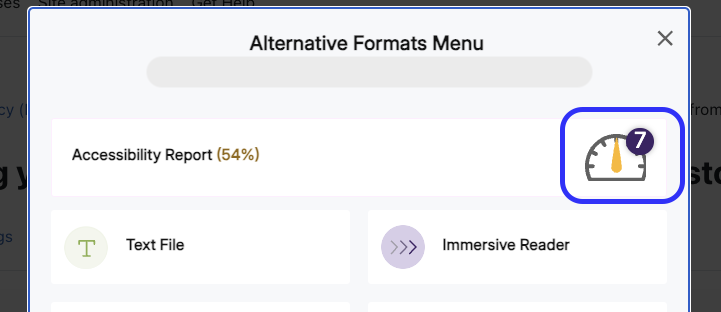
Step 3 In the Panorama pop up window, click on the dial icon.  Panorama dial outlined in blue
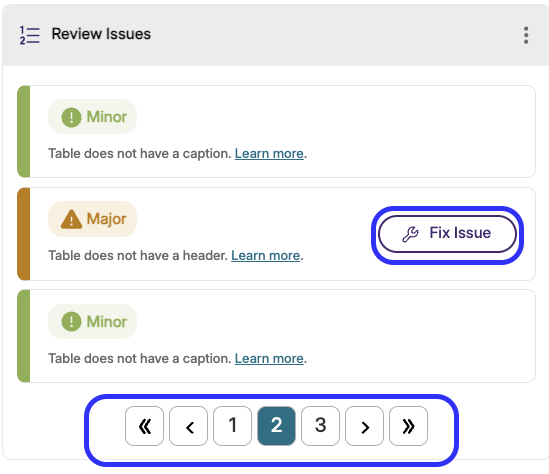
Step 4 On the resulting screen, click Fix Issue for any items in the list. (Be sure to cycle through the screens via the numbers under the issues.) blue outline for fix issue button 
Step 5

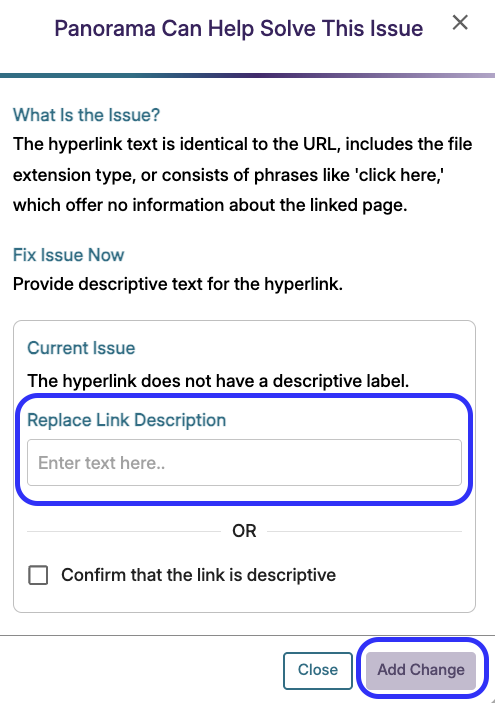
A dialogue box will pop up, explaining each issue and giving you an opportunity to make updates. Follow the steps.

Click the Add Change button.

 box outlining where to type link description and box outlining add change button
Step 6

Now, click Fix Issue next to any other issue and Panorama will walk you through those steps.

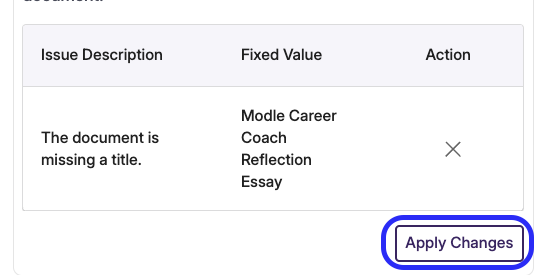
After fixing all issues, click Apply Changes.

 Apply changes outlined in blue
Step 7

In order to ensure that the accessible version of your file will be copied forward when you copy this course into a new semester, you must download and re-upload the updated file. 

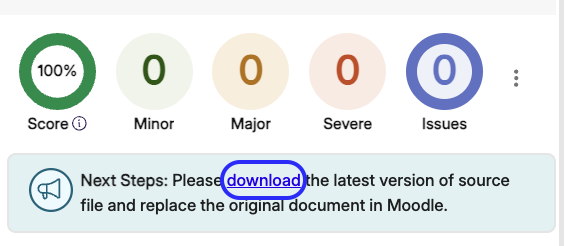
Without exiting the Panorama box, click the blue download text to download the updated file.

 download link outlined in blue
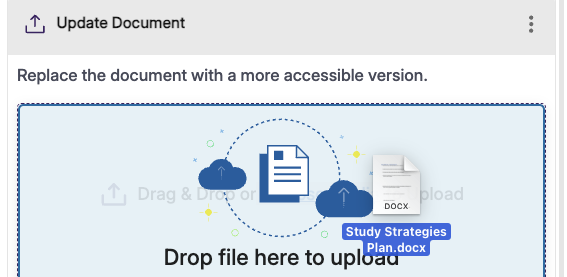
Step 8 Now, drag and drop the new file into the upload area of the Panorama box (near the bottom of your screen).   Drag and drop
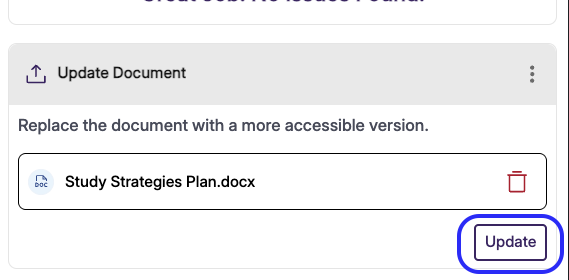
Step 9 When the file has loaded, click the Update button, and your file will be ready to go!  Update outlined in blue


Questions? Please submit a Help Ticket to SCC E-Learning (under "Select Type of Help," choose "Moodle Assistance")

» Accessibility Tutorials (Panorama)

Accessibility

Background Colour Background Colour

Font Face Font Face

Font Kerning Font Kerning

Font Size Font Size

1

Image Visibility Image Visibility

Letter Spacing Letter Spacing

0

Line Height Line Height

1.2

Link Highlight Link Highlight

Text Colour Text Colour