Matt Litchford

Setting up Watermark Texting

by Matt Litchford - Thursday, July 9, 2026, 8:46 AM
 

Before sending a text to students, you will need to configure a phone number.  Follow the steps in this tutorial before sending your first text.  These steps only need to be completed once.


Step 1

Log into MySCC, then click the Watermark  icon (under Resources) 

blobid0.png

Step 2

Click Student in the top blue navigation bar.

Home, Student and Courses navigation links with Student highlighted.


Step 3

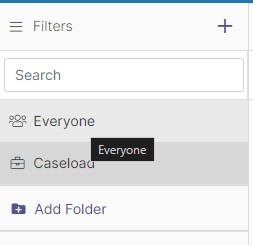
In the left side of the screen choose Everyone 

Search filters by everyone, caseload, and an add folder option


Step 4

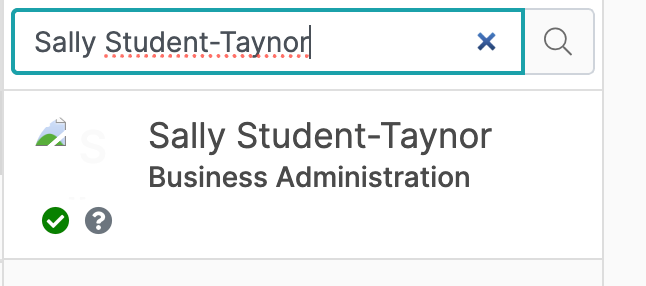
In the search bar, type in the name:


Sally Student-Taynor, 


or id:  fc3360fd


then click the Magnifying Glass / Search Icon.

blobid3.png


Step 5

Once the student profile page appears, click the Message icon in the upper menu.

Running banner for student profile with message highlighted in blue

Step 6

A message pop-up window will appear. Click Text Message.  

Communication tabs with Text Message highlighted in blue.

Step 7

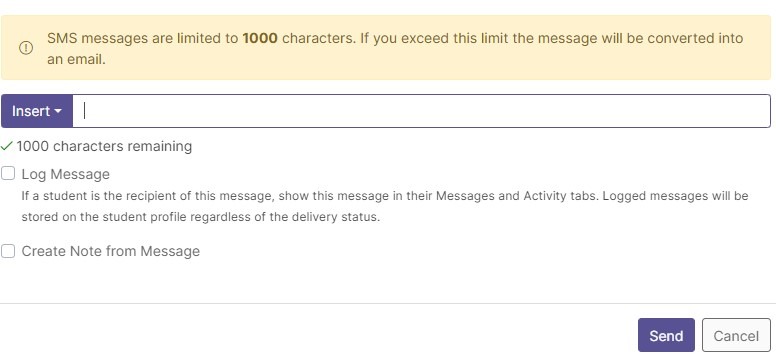
Type in “Test” and click Send.  (You should receive a student confirmation text message within 24 hours to show your account has been set up.  

Message input text box with log message and create note options.

Step 8

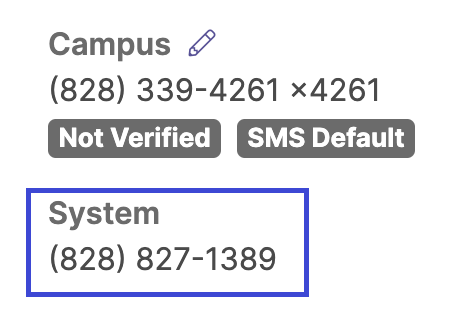
Once you have sent your first text through the system, you will see a new phone number in your Profile.  


This phone can be shared with your students (in syllabus etc).  


Note, students can only send texts to this number after they have received a text from it.  

Campus and System numbers, with the system number highlighted in a blue box


Questions? Please submit a Help Ticket to SCC E-Learning (under "Select Type of Help," choose "Moodle Assistance")

» Watermark (Aviso) Engagement Help

Accessibility

Background Colour Background Colour

Font Face Font Face

Font Kerning Font Kerning

Font Size Font Size

1

Image Visibility Image Visibility

Letter Spacing Letter Spacing

0

Line Height Line Height

1.2

Link Highlight Link Highlight

Text Colour Text Colour