Matt Litchford

Sending a Text to Your Class Using Watermark \ Aviso

by Matt Litchford - Thursday, July 9, 2026, 8:43 AM
 

Messages in Watermark \ Aviso can be sent as emails or text messages. 

Step 1

Log into MySCC, then click the Aviso icon (under Resources)

Aviso icon, a cartoon loudspeaker.

Step 2

Click on the courses tab to display your class roster

Courses link, white text on blue background.


Step 3

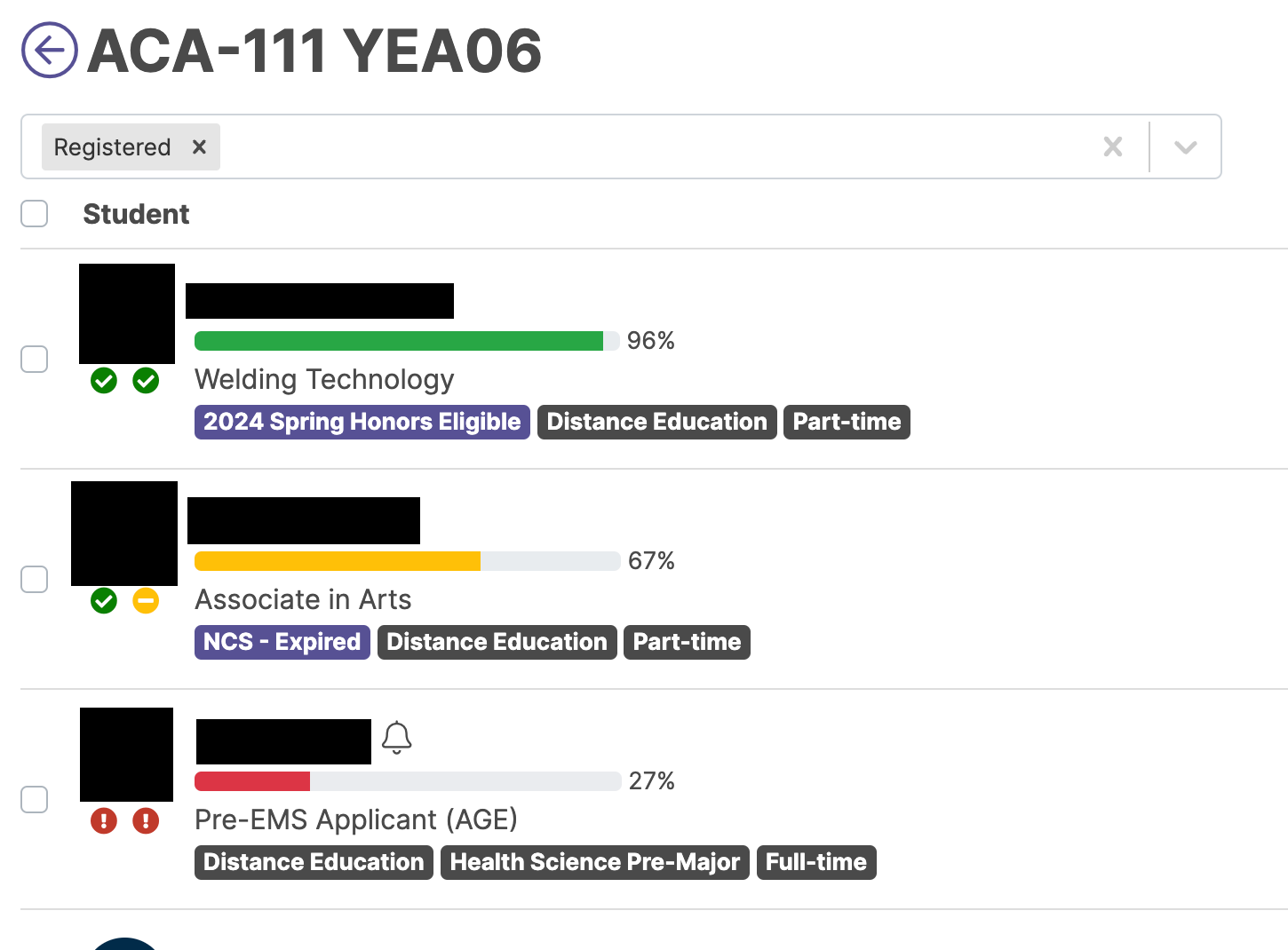
Select the whole class by clicking the box at the top, or select individual students by clicking the box next to their name.

Registered student list with names and images blacked out. Lists program and status.


Step 4

Click message at the top of the screen

Running banner for student profile with message highlighted in blue


Step 5

Choose Text Message in the message screen

Communication tabs with Text Message highlighted in blue.

Step 6

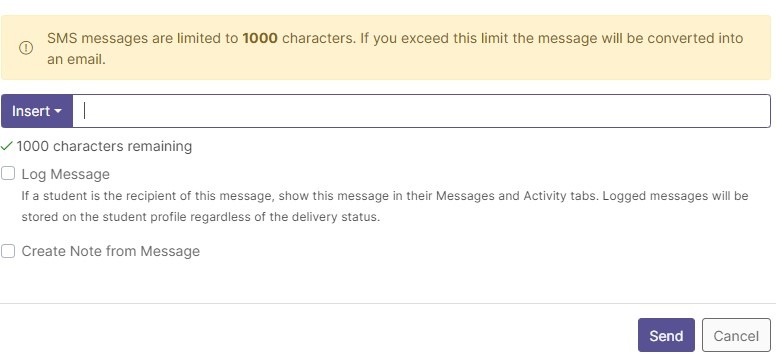
Type your message of 1000 characters or less, then click send.  

Note if your message includes more than 1000 characters, it will be sent as an email.  

Message input text box with log message and create note options.


Questions? Please submit a Help Ticket to SCC E-Learning (under "Select Type of Help," choose "Moodle Assistance")

» Watermark (Aviso) Engagement Help

Accessibility

Background Colour Background Colour

Font Face Font Face

Font Kerning Font Kerning

Font Size Font Size

1

Image Visibility Image Visibility

Letter Spacing Letter Spacing

0

Line Height Line Height

1.2

Link Highlight Link Highlight

Text Colour Text Colour