Matt Litchford

Google - Participating in a Live Virtual Class Using Google Meet

by Matt Litchford - Wednesday, June 25, 2025, 8:13 AM
 

Participating in a Live Virtual Class using Google Meet

This tutorial shows you how to participate in a live virtual class using Google Meet.

Please note: Google Meet works best in the Chrome browser.

Participating in a Live Virtual Class Using Google Meet
Step 1 Start by accessing your Moodle course, then click on the name of the Google Meet session to open it.


Google Meet Link - Sample Meeting

Step 2 On the next screen, click on the Enter the room button.


 blue Enter the room button

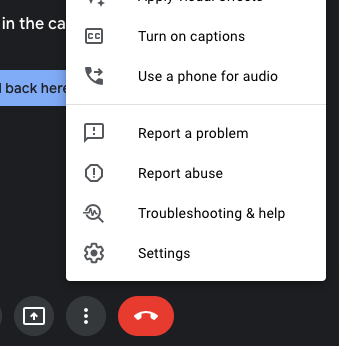
Step 3 You can click the three dots at the bottom of the screen and choose Settings to check and test your microphone and camera settings.


Settings at the bottom

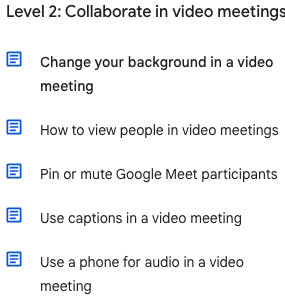
Step 4 For instructions on using the features in Google Meet, visit this page and see the menu of topics on the right-hand side. 


image example of available topics


Questions? Please submit a Help Ticket to SCC E-Learning (under "Select Type of Help," choose "Moodle Assistance")

» Using Moodle

Accessibility

Background Colour Background Colour

Font Face Font Face

Font Kerning Font Kerning

Font Size Font Size

1

Image Visibility Image Visibility

Letter Spacing Letter Spacing

0

Line Height Line Height

1.2

Link Highlight Link Highlight

Text Colour Text Colour