
Using Moodle
This guide's is designed show you how to get around Moodle. Think of it like your personal cheat sheet for finding stuff and getting things done in your online classes.
Finding What You Need:
At the top of the page, you'll find ways to browse:
- Alphabetical: (A, B, C...): Click a letter to jump to terms starting with that letter.
- All: See every single term on one long page.
- Search Bar: This is your best friend! Just type in what you're looking for (like "Grades" or "Assignments") and hit Enter.
- Key Words: Every entry has a bolded word (like "MyCourses" or "Messages") and a clear explanation of what it is and what it does in Moodle.
- Helpful Links: You'll often see blue, underlined words inside the definitions. These are links to other terms in the glossary. Click 'em! It's a great way to see how different parts of Moodle connect.
Quick Tips for Making It Easier:
- Use that search bar! It's the fastest way to get answers.
Put it into practice. The more you actually do what the glossary says, the better you'll understand Moodle.
Come back to it. Moodle has a lot going on. If you ever forget how something works, just come back here to review
A | B | C | D | E | F | G | H | I | J | K | L | M | N | O | P | Q | R | S | T | U | V | W | X | Y | Z | ALL
U |
|---|
Using the Read&Write Dictionaries | ||||||||
|---|---|---|---|---|---|---|---|---|
Using the Read&Write DictionariesIn this tutorial, you will learn how to use the talking and picture dictionaries in the Read&Write toolbar.
| ||||||||
 on the Read&Write toolbar.
 button next to one of the definitions.
 to close the Dictionary window.
 on the Read&Write toolbar.
Y |
|---|
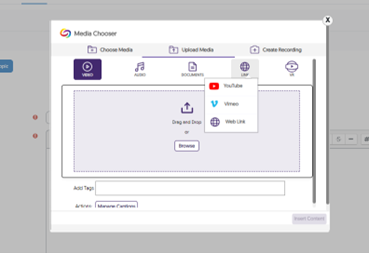
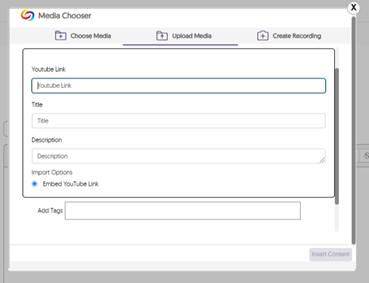
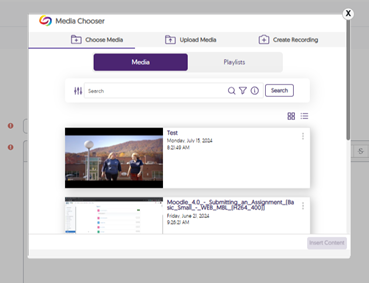
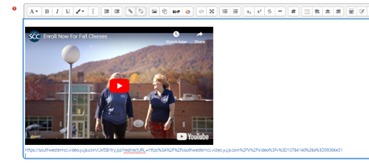
YouTube - Adding a YouTube Video to an Assignment | ||||||||||||||||||||||||||
|---|---|---|---|---|---|---|---|---|---|---|---|---|---|---|---|---|---|---|---|---|---|---|---|---|---|---|
| ||||||||||||||||||||||||||


Background Colour
Font Face
Font Kerning
Font Size
Image Visibility
Letter Spacing
Line Height
Link Highlight
Text Colour